
Month: July 2021
7 Tremendous Strategies to Generate Local Business with Digital Marketing
- 5 Min Reads
-

- By Dhwani Shah

Well, it’s 2021 the era of digital business, and if your business is lacking in relevant digital Marketing Strategies, now is the time to adapt it to be ahead in the
competition. Therefore, we have gathered some tremendous ways to help you generate your business onto a digital platform. Let’s check out
About Author
Like What You See? Share with a Friend
Turn Insights Into Action
Planning something next? Let’s turn ideas into action.
Why Does Customized Software Win Over Off-the-Shelf?
- 5 Min Reads
-
- By Dhwani Shah
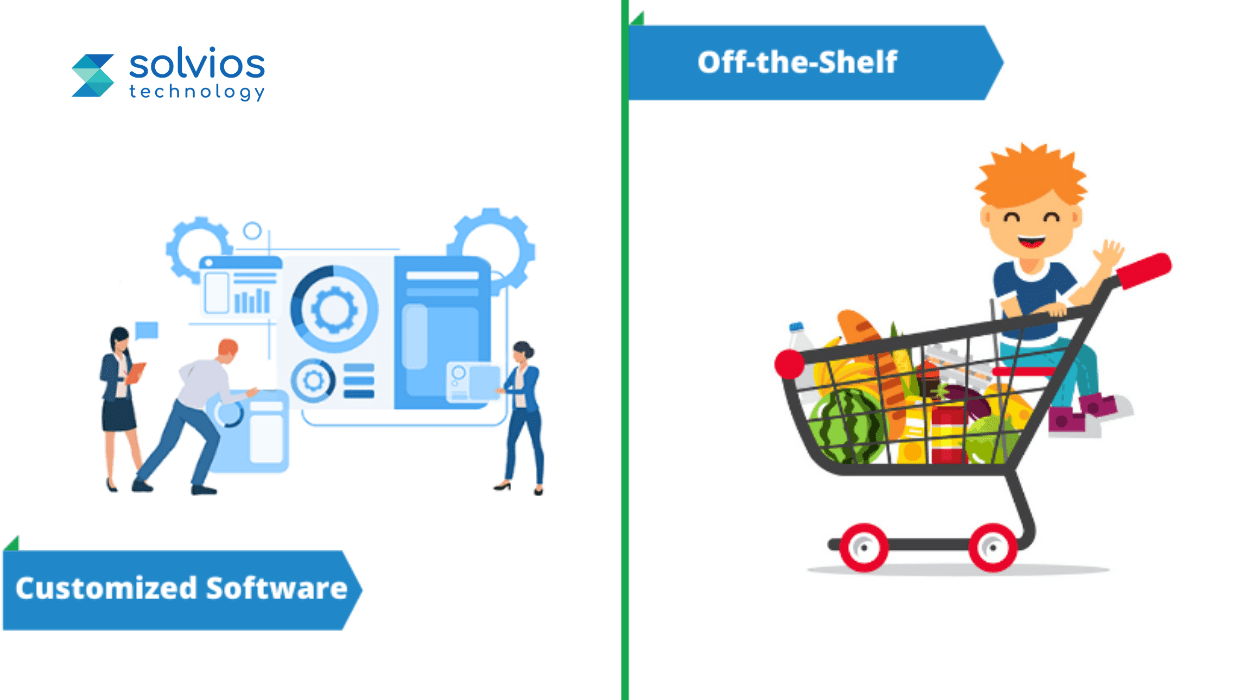
To generate wider business opportunities and to save time and money, businesses today are transforming into digital platforms. The need for digital has created a scenario where enterprises are constantly investing to introduce digital solutions for their customers. (more…)
About Author
Like What You See? Share with a Friend
Turn Insights Into Action
Planning something next? Let’s turn ideas into action.
5 Useful Tips to Hire a Salesforce Administrator for Your Organization
- 5 Min Reads
-
- By Dhwani Shah

Who are Salesforce administrators?
Salesforce administrator holds expertise in salesforce customer relationship management systems and their products. They work for corporations where they are responsible for administering the salesforce system, providing training on salesforce products, and maintaining sales-related databases.
About Author
Like What You See? Share with a Friend
Turn Insights Into Action
Planning something next? Let’s turn ideas into action.
Salesforce Lightning Migration – Here’s What You Need to Know?
- 16 Min Reads
-
- By Dhwani Shah
- Classic vs Lightning – Detailed Comparison Table
- What Are the Conventional Things You Can Migrate to Salesforce Lightning?
- Will We Just Use Migration Assistant to Migrate from Classic to Lightning?
- What Else Should We Reconsider Before Migrating to Lightning Experience?
- Salesforce Lightning Migration Process (Step-by-Step Guide)
- Salesforce Lightning Migration Strategy
- Key Challenges & How to Solve Them
- Tools Used in Salesforce Lightning Migration
- Salesforce Lightning Migration Cost Breakdown
- Step by step instructions to Get Ready to Migrate to Lightning Experience
Key Takeaways
Salesforce Lightning Migration upgrades your CRM from the older Classic interface to the modern Lightning Experience. Your data stays intact while you gain a faster, component-based workspace with interactive dashboards, Kanban views, and mobile-first design.
A reliable migration follows eight steps: org audit, metadata review, code cleanup, UI redesign, sandbox prototype, user testing, deployment, and post-go-live tuning.
Costs depend on org complexity. Small orgs spend $8,000–$20,000, mid-size orgs $20,000–$50,000, and enterprise migrations $50,000–$150,000 or more. Old JavaScript buttons, Visualforce pages, and tangled automations push the number higher.
A phased rollout works best, one team at a time, with pilot users catching issues early. Big-bang launches suit smaller, cleaner orgs but carry more risk.
Lightning Migration isn’t just a UI swap. It’s a chance to clear technical debt, modernize automations, and give teams an interface they’ll actually use.
To improve the Salesforce experience and address users’ issues, Salesforce asked users for input on the client relationship management system. Numerous users concurred on a certain something: They needed a superior and more modern user experience Salesforce Lightning Migration.
Rather than tweaking a couple of things to a great extent, the organization patched up Salesforce. The change is comparable to redesigning from a PC running Windows XP to one that runs Windows 10. Salesforce Lightning Experience contains a totally updated interface, user experience, and platform. Organizations planning this transition often rely on expert Salesforce consulting services to ensure the migration aligns with business workflows and long-term scalability.
Classic vs Lightning – Detailed Comparison Table
The table below gives a clear, practical view of what teams actually notice when they move from Classic to Lightning. It avoids marketing fluff and highlights the real-world differences your users will feel on day one.
| Category | Salesforce Classic | Salesforce Lightning |
| User Interface | Static pages with a dated layout; limited control over how information appears on screen. | Modern, component-based UI built around workspace-style layouts. Pages adjust to how teams work, not the other way around. |
| Speed & Performance | Refresh-heavy experience; most actions trigger full page reloads. | Faster interactions, partial page refreshes, and better handling of complex views. Significant boost when working with long record lists. |
| Productivity Tools | Tasks, notes, and activities feel basic and disconnected. No real workspace concept. | Features like Kanban, Path, Utility Bar, and split-view make everyday tasks noticeably smoother for sales and service teams. |
| Reporting & Dashboards | Functional but rigid. Dashboards allow only three columns and limited interactivity. | Interactive dashboards with dynamic filters, expanded layouts, and far stronger visualization options. |
| Mobile Readiness | Mobile is usable but not designed as an extension of the desktop experience. | Lightning is mobile-first; users get consistent layouts, responsive components, and better offline support. |
For a deeper functional breakdown of interface behavior, customization limits, and user productivity differences, teams can review this detailed guide on Salesforce Classic vs Salesforce Lightning before finalizing their migration strategy.
Planning a Salesforce Lightning migration?
See what it costs
What Are the Conventional Things You Can Migrate to Salesforce Lightning?
At the point when an organization relocates from Salesforce Classic to Lightning Experience, it holds the entirety of its information and viable usefulness. Clients ought to anticipate that the transfer should be basically the same as redesigning from a more established working system to another one. All the basic information will in any case be there and they acquire new incredible highlights.
They support the vast majority of the highlights accessible in Salesforce Classic in Lightning. In any case, a few highlights don’t show up in Lightning Experience yet.
Organizations can discover which of their key carried-out highlights and customizations are prepared for the Lightning Experience. To do this, organizations should run the Salesforce Lightning Experience Readiness Check to identify unsupported features, customization gaps, and potential risks before enabling Lightning.
Will We Just Use Migration Assistant to Migrate from Classic to Lightning?
Migration assistant is an element that will assist clients with moving from Salesforce Classic to Salesforce Lightning Experience. It gives you assets that will assist you with getting the hang of lighting experience to choose if it is ideal for your association. After the association chooses to move, the associate aides them through the means to set it up and turn on key highlights.
Keep in mind, that Lightning doesn’t uphold a few highlights. Rather than utilizing Migration Assistant, associations will adopt an alternate strategy to execute the missing highlights, which incorporate JavaScript catches, landing page parts, and record route URLs.
As the initial phase in Migration Assistant, users will run the Lightning Readiness Check Report to recognize concerns or issues. Assuming there are no issues, the association can utilize Migration Assistant. Another choice is to Hire Salesforce Developer who can assist the association with migrating Salesforce Classic to Lightning Experience. A Salesforce Admin Consultant will realize how to deal with missing customizations and unsupported highlights.
Not Sure If Your Org Is Lightning-Ready?
Check Your Lightning Readiness
What Else Should We Reconsider Before Migrating to Lightning Experience?
Prior to moving to Lightning Experience, analyze these four significant elements.
- Confirm all the norm out-of-confine highlights utilized the application and product advancement are accessible in Lightning Experience.
- Check whether the installed packages have Lightning-prepared certificates. In the event that the application doesn’t have accreditation, a portion of its highlights may not be accessible or filled in the true form.
- Ensure all significant usefulness functions as planned without breaking while at the same time doing the preview.
- Supplant all hardcoded URLs with current Salesforce occasion URLs. The example URL will change in Lightning Experience in view of domain creation.
Salesforce Lightning Migration Process (Step-by-Step Guide)
Moving from Classic to Lightning is not a simple “switch the interface” job. Anyone who has lived inside a long-running Salesforce org knows that the real challenge is understanding how the system has grown over the years — custom objects added quickly to fix a problem, old scripts that nobody wants to touch, or layouts stitched together by different teams.
A reliable Lightning migration respects all of that history while giving your users a cleaner, faster experience.
Below is the complete migration lifecycle. Most guides you find online show only the surface; this is the version that actually helps you avoid surprises.
Step 1: Org Audit & Readiness Assessment
The process starts with a ground-level audit: objects, page layouts, automations, integrations, and anything that has become “tribal knowledge.”
We look at the configurations your team depends on — not just the ones technically listed inside Setup.
Why this matters:
You avoid broken fields, missing actions, or workflows that silently fail once Lightning goes live.
Step 2: Metadata & Component Analysis
Next comes a deeper look at all metadata.
We map every custom object, validation rule, list view, Visualforce page, and integration. Some of these can shift to Lightning smoothly; others need adjustment.
Why this matters:
Lightning follows stricter rules, so outdated dependencies must be spotted before they become blockers.
Step 3: Custom Code & APEX Review
Older orgs often rely on APEX triggers, JavaScript buttons, or Visualforce pages built years ago.
These need a full review because many Classic-era solutions don’t behave well in Lightning.
The usual work here includes:
Swapping JavaScript buttons for Lightning-safe actions
Adjusting APEX logic that uses deprecated functions
Converting certain Visualforce pages into Lightning components or rebuilding layouts
Why this matters:
A small line of outdated code can cause chaos after launch if not caught early.
Step 4: Mapping Classic → Lightning UI & Component Redesign
Lightning isn’t a “copy the same layout and hope it works” migration.
We rebuild pages using Lightning App Builder, structuring them around how your sales or support team actually moves through a record.
This includes reorganizing tabs, embedding components that reduce clicks, and removing clutter that slowed people down in Classic.
Why this matters:
A thoughtfully designed Lightning page reduces training time and keeps adoption high.
Step 5: Prototype Build in Sandbox
A separate sandbox carries the first full Lightning version.
All layout changes, component updates, and automation adjustments are tested here — safely away from production.
Why this matters:
Teams get a real feel of the new experience before anything changes in their daily workspace.
Step 6: UAT (User Acceptance Testing)
Once the prototype stabilizes, real users test real scenarios: converting leads, resolving cases, reviewing dashboards, checking approval flows, and navigating from one app to another.
Feedback from this phase shapes the final adjustments.
If something slows a user down, we fix it now — not after go-live.
Why this matters:
Users adopt systems they trust, and they trust systems that feel familiar and efficient.
Step 7: Deployment & Go-Live
After UAT, changes move to production with a scheduled cutover window.
We validate every major component with live data to ensure the org behaves as expected.
Step 8: Post-Go-Live Optimization
Once Lightning is live, usage patterns reveal what needs tuning — a button moved higher, a field removed from a crowded section, or a report that loads slowly.
Post-go-live refinements make the interface feel lighter and tailored to the way your teams actually work.
Why this matters:
The real value of Lightning shows up after people start using it daily.
Need Help with Salesforce Lightning Migration?
Talk to a Salesforce Expert.
Salesforce Lightning Migration Strategy
A Lightning migration only works when the rollout matches how your teams actually operate. Some groups adapt quickly; others need time. Classic organizations carry years of habits, shortcuts, and custom fixes that can’t be pushed aside in one sweep.
So the strategy matters more than the tools.
Here are the approaches that usually decide whether the migration feels smooth or chaotic.
1. Phased Rollout
This is the approach most companies fall back on because it gives people room to adjust. You start with one function (often Sales or the support team) and let them settle into Lightning. Once the rough edges are fixed and the layouts start feeling natural, the next group moves in.
Why it works:
You don’t shock the entire org at once. Problems surface in manageable batches instead of exploding on go-live day.
2. Big Bang Rollout
Some businesses prefer flipping everyone to Lightning on a single cutover date.
It’s bold, it’s fast, and comes with risks involved.
When it fits:
Smaller teams, cleaner orgs, or companies already used to mobile Salesforce.
If automations are stable and the interface is simple, the big bang can save months of staggered transitions.
The challenge:
If something slips, everyone part of the team faces problem in their operations.
3. Pilot Groups
Pilot users are your first line of truth. They catch the odd things that don’t appear in testing; a missing quick action, a field that’s too buried, or an approval path that behaves differently in Lightning.
Why it matters:
Pilot feedback avoids dozens of post-launch complaints. They often point out issues even admins didn’t expect.
4. User Segmentation
Lightning shouldn’t look identical for every department. Sales wants cleaner record views, support teams need fewer clicks on cases, and leadership usually prefers dashboards up front.
Segmentation helps you:
- Prioritize which teams move first
- Design pages differently for each role
- Reduce the “where did that button go?” frustration
- Roll out capabilities when each team is actually ready
It makes the change feel personal instead of forced.
5. Feature Prioritization
Lightning ships with a long list of enhancements (Path, Kanban views, Utility Bar items, Dynamic Forms), and so on. Turning everything on at once sounds exciting, but it overwhelms new users.
A smarter approach:
Start with the basics, establish workflows, and then add sophisticated features as people stop depending on Classic muscle memory.
Key Challenges & How to Solve Them
A Lightning migration doesn’t fail because the UI is confusing; it fails because Classic orgs carry years of hidden dependencies that no admin notices until things break. Once you start testing real user paths (converting a lead, logging a case, approving a quote) that’s when the cracks appear.
Here are the challenges most companies hit, and the practical fixes that stop the migration from derailing.
1. Visualforce Pages That Don’t Behave in Lightning
Many Visualforce pages were built around Classic-only styling or functions. In Lightning, they load… strangely.
Solution: Audit each page, remove outdated scripts, and convert high-usage pages into LWCs. For low-usage pages, wrapping them in a Lightning container is usually enough.
2. JavaScript Buttons That Break Immediately
Classic JS buttons are one of the biggest pain points because Lightning blocks them outright.
Solution: Rebuild them using Quick Actions, URL hacks, or small LWCs. You also eliminate years of fragile logic in the process.
3. Slow or Overloaded Record Pages
Lightning shows performance problems that Classic may disguise. Too many components, heavy layouts, and outdated related listings make the whole experience slower.
Solution: Use tabs to conceal information that isn’t necessary, and Dynamic Forms so that users only see what they need to see.
4. Classic-Only Automations Hidden in the Shadows
Workflow Rules and half-finished Process Builder flows often misfire after migration.
Solution: Consolidate everything into a clean Flow. This reduces risk and gives your system a single source of truth for logic.
5. Installed Package Conflicts
Some managed packages were built for Classic UI patterns and don’t adapt well to Lightning.
Solution: Check vendor documentation early. If the package is old, redesign the impacted screens using native Lightning tools.
6. Permission & Visibility Gaps
Lightning treats visibility and component permissions differently. A field visible in Classic may disappear in Lightning.
Solution: Review profiles, permission sets, and any dynamic component rules as part of UAT, not after go-live.
A predictable Lightning migration comes from addressing these issues upfront; not scrambling once users log in.
Tools Used in Salesforce Lightning Migration
A proper Lightning migration isn’t just configuration work. The tools you use decide whether the move feels clean or full of surprises. Classic orgs carry years of small fixes, forgotten objects, and scripts nobody remembers writing; so relying on a single readiness report never works.
Here’s the actual toolkit that keeps a migration steady from audit to deployment.
1. Salesforce Optimizer
We usually start here. It exposes the clutter you don’t see every day — unused fields, aging workflows, slow reports, and page layouts packed with fields nobody touches anymore.
If you want Lightning pages to load fast, this is the report that tells you what to clean first.
2. Lightning Experience Check
This one highlights Lightning-specific trouble spots: unsupported buttons, components that won’t render, and Visualforce pages likely to misbehave.
It’s not perfect, but it gives you a good “here’s what might break” list.
3. PMD (Code Analyzer)
For orgs with years of APEX, PMD saves a lot of headaches. It flags problematic code (old methods, inefficient queries, missing bulkification) the kind of stuff Lightning exposes more than Classic ever did.
4. Workbench
Not flashy, but incredibly useful.
When something feels off during UAT, Workbench helps you query metadata, check relationships, and confirm whether the issue is configuration or data.
5. Gearset or Copado
Instead of dragging change sets around, these tools let you compare metadata, push changes safely, and roll back if something behaves unexpectedly. Essential when multiple components change at once.
6. Lightning App Builder
This is where the new experience takes shape. You rebuild record pages, shift components around, and hide noise that used to crowd Classic layouts.
7. Flow Migration Utilities
When moving off Workflow Rules or Process Builder, these utilities help convert logic into a cleaner, modern Flow without rewriting everything from scratch.
Salesforce Lightning Migration Cost Breakdown
Most teams begin their Lightning move with one question nobody answers clearly: “What will this cost us?”
There isn’t a flat number because the real cost hides inside your existing Salesforce org: how it was built, how much custom work sits inside it, and how many years of “quick fixes” it has collected.
Below is a clearer, more honest look at how migration costs actually shape up.
1. What Drives the Cost Behind the Scenes
A Lightning upgrade is not expensive because Lightning is new; it’s expensive because Classic usually carries a long history. Things like old APEX triggers, Visualforce pages written for browsers that no one uses anymore, custom buttons running JavaScript, and automation built in three different tools; all of that needs sorting out.
A few factors influence the budget more than anything else:
- How large the org is and how long it has been in use
- The volume of custom code sitting behind everyday processes
- How many page layouts need to be redesigned in Lightning
- The number of third-party packages with Classic-only components
- The amount of cleanup required in workflows, PB flows, or old validation logic
- How many teams need their own UAT round before sign-off
No two orgs look alike, which is why the estimates vary so widely.
2. Cost Ranges Most Businesses Fall Into
These figures reflect real-world projects across sales, service, and multi-department orgs.
Small Orgs: $8,000 to $20,000
Simple structures, minimal code, a handful of VF pages, and a quick redesign of record pages.
Mid-Size Orgs: $20,000 to $50,000
More users, more automation debt, multiple Lightning pages, and code that needs partial refactoring.
Enterprise Orgs: $50,000 to $150,000+
Heavy APEX usage, dozens of Visualforce screens, complex integrations, packaged apps, and multi-phase rollouts.
3. Licensing Considerations
Lightning itself doesn’t force any new license, but many teams choose to upgrade while migrating.
Things like newer platform licenses, Einstein Activity Capture, additional API capacity, or Digital Engagement add to the cost; not because Lightning demands it, but because migration becomes a convenient moment to modernize.
4. Typical Development Hours
For context, most partners (including us) see these ranges repeatedly:
- Org audit + metadata review: 20–40 hours
- Code refactoring + JS button replacements: 40–120 hours
- Lightning page redesigns: 30–80 hours
- Flow/automation rebuilding: 25–60 hours
- UAT cycles: 20–50 hours
- Deployment + post-go-live tuning: 15–30 hours
These aren’t fixed; they simply reflect how long it takes to move an org from “Classic workflows that evolved randomly” to a predictable, Lightning-ready environment.
Step by step instructions to Get Ready to Migrate to Lightning Experience
Here are three stages to take to assist you with getting ready for migration:
- Evaluate: Run Lightning Experience Readiness Check to get a PDF Readiness Report by email. It will propose proposals on the most proficient method to set up the association for relocating to the Lightning Experience.
- Compare: Review the correlation agenda of Classic and Lightning highlights to perceive what it means for your association’s Salesforce execution.
- Preview:Test-drive Lightning Experience prior to moving the whole association to perceive what it will resemble for the association after execution.
Between the Readiness Report and the pilot team doing the review, you’ll acquire knowledge on what’s working and what’s not working. Make a rundown of all that requires changing and add a segment to report the situation to everyone. Focus on the rundown to decide on simple things and the ones that require additional time and assets.
Once Lightning is live, ongoing optimization, monitoring, and enhancements are critical. Many businesses choose Salesforce support and maintenance services to keep performance stable, address evolving requirements, and continuously improve user adoption.
Subsequent to making a couple of adjustments, run the Readiness Check once more. You’ll probably run it on numerous occasions as you continuously move to the Lightning Experience. Additionally, Salesforce ceaselessly refreshes the availability check. For any further queries, Hire Salesforce Developer from Solvios Technology. The team can guide you with the end-to-end process. Talk to our Salesforce Expert today.
Planning a Salesforce Lightning Migration?
Contact Us Today
About Author
Like What You See? Share with a Friend
Turn Insights Into Action
Planning something next? Let’s turn ideas into action.