
Month: April 2026
Top HubSpot AI Tools for Marketing, Sales & Service Automation
- 13 Min Reads
-

- By Dhwani Shah
- Top AI Tools for HubSpot: What Makes Them Stand Out
- Top HubSpot AI Tools in 2026 (Best AI Tools for Marketing, Sales & Support Service Automation)
- How AI Tools Integrate with HubSpot (APIs, Automation & Data Sync)
- Real-World Use Cases of HubSpot AI Tools (Marketing, Sales & Support)
- Business Impact of HubSpot AI Tools – Key Metrics & ROI Improvements
- How to Choose the Best AI Tools for HubSpot
- Best Practices for Implementing HubSpot AI Tools Successfully
- Common Challenges And How to Solve Them with HubSpot AI Tools?
- How Solvios Can Help – AI Strategy & HubSpot Integration Services
- Frequently Asked Question
Key Takeaways
- HubSpot AI tools enhance marketing, sales, and customer support by using real-time CRM data to automate workflows, improve personalization, and enable faster decision-making.
- Effective AI implementation in HubSpot depends on clean, structured CRM data and seamless integration, ensuring accurate insights and consistent performance across teams.
- AI tools within HubSpot streamline key business functions such as lead generation, content creation, outreach automation, and customer support, reducing manual workload and improving efficiency.
- Choosing the right HubSpot AI tools requires aligning them with business goals, scalability needs, and measurable ROI, ensuring long-term value across marketing, sales, and service operations.
The business ecosystem has become more real-time post-AI… Decisions need to be made in real time, and teams must act faster.
However, many organizations remain hindered because they can’t integrate AI without changing their workflows.
Enter HubSpot, the key to integrating AI with your tech stack.
HubSpot’s open ecosystem allows business owners to optimize their workflow with AI without any modifications. Your old systems stay exactly as they are.
However, the platform reaches its true potential when CRM data meets AI. Access to user history, engagement, and relevant data turns information into insight. It enables faster decision-making between teams.
The best HubSpot AI tools help businesses automate marketing, sales, and customer service using real-time CRM data.
In this guide, we cover the best AI tools for HubSpot, how they work, and how to choose the right solution for your business.
Top AI Tools for HubSpot: What Makes Them Stand Out
Not every AI tool works seamlessly with HubSpot. The value of your integration determines its overall output, which is why choosing the right HubSpot Consulting Services can make a significant difference.
Here’s what makes an AI tool valuable in HubSpot:
1. Seamless integration with HubSpot workflows
Teams resist using disconnected tools. You must use AI modules that feel like part of the workflow, not forced additions.
2. Real-time CRM data utilization
The accuracy and structure of your data play a crucial role in AI integration. The tools extract information from your CRM to ensure the data is accurate when integrated with HubSpot.
3. Support for automated tasks
AI should work as an enabler inside your workflow. It should handle repetitive tasks that consume your bandwidth.
4. Personalization at scale
Personalization is the key to customer communication. Your AI tool should personalize communication using actual customer data, not templates.
5. Measurable ROI
The benefits should be obvious: improved conversion rates, faster implementation, and less manual labor over time.
You can explore key HubSpot AI features to understand what drives results.
Planning to optimize your workflows with the right AI tools?
Consult our expertsTop HubSpot AI Tools in 2026 (Best AI Tools for Marketing, Sales & Support Service Automation)
HubSpot AI Tools for Sales Enablement
Sales teams spend a lot of time drafting emails, finding leads, and following up. Thanks to AI, you can replace these multiple tasks with a single tool that manages them efficiently.
Lavender
Lavendar is a great HubSpot ai tool for accelerating email outputs. It helps teams create email sequences and provides instant feedback on the message’s overall appeal.
- Real-time email scoring and suggestions
- Improves reply rates with better subject lines
- Works within Gmail/Outlook + HubSpot workflows
Price – Starting at $29–$49/user/month
Apollo.io
Apollo.io is a great prospecting HubSpot ai tool for extracting data like contacts and other information and syncing it with HubSpot. It saves time for the team while prospecting.
- AI-based contact discovery and enrichment
- Syncs leads directly into HubSpot CRM
- Outreach based on behavior signals, not static lists
Price – Free plan available, paid starts ~$49/user/month
Outreach.ai
Outreach.ai is designed to handle the follow-ups of your prospects. This HubSpot ai tool automates follow-ups to ensure teams don’t have to do everything manually.
- AI-driven sequencing and follow-up suggestions
- Pipeline insights and basic forecasting support
- Reduces manual tracking across large pipelines
Price – Custom pricing (typically enterprise-focused)
| Tool | Best used for |
| Lavender | AI sales writing |
| Apollo.io | AI leads discovery and engagement |
| Outreach.ai | Automating the sales suite |
HubSpot AI Tools for Marketing Automation
Marketing teams are generally responsible for designing campaigns, initiating follow-ups, and delivering content. Here are some HubSpot ai tools designed to streamline work for an entire team while improving their output.
Eesel.ai
Eesel.ai works as a workflow assistant for business owners. This HubSpot ai tool uses CRM data to suggest changes and analyze live sequences in active campaigns.
- Suggests content ideas, drawn from your CRM data
- Assists in planning email sequences and campaigns
- Integrates seamlessly into your existing workflows
Price – Custom pricing, based on usage
Jasper.ai
Jasper.ai is among the leading HubSpot ai tools for creating content for your workflows. It allows you to create email sequences, blogs, and landing pages in record time.
- It helps you write blog introductions and email drafts
- It generates landing pages and ad copies
- Keeps your content operations running smoothly
Price – Starts around $39/month (varies by plan)
MeetNotes AI
MeetNotes AI captures meeting insights during every call. This HubSpot ai tool captures conversations, offering a summary of each one, and simultaneously updates your CRM.
- Gives meeting insights
- Updates meeting records in HubSpot
- Assists teams in tracking conversations and follow-ups
Price – Typically usage-based or custom
| Tool | Best used for |
| Eesel.ai | Planning campaign and workflow automation |
| Jasper.ai | Content generation |
| MeetNotes AI | CRM updates and meeting summaries |
HubSpot AI Tools for Customer Support & Experience
Support teams often find themselves dealing with multiple pain points. They have to deal with active support tickets and repetitive queries, which result in delayed customer response. Here’s a list of best HubSpot ai tools for customer support and experience:
Intercom (AI Chatbots for Support)
Intercom is a platform designed to handle first-stage queries using AI. It also assists agents when they talk to customers.
- Automated responses for common questions
- Provides swift replies for customer service teams
- Enhances customer support during busy periods
Price – Begins at approximately $39/month, depending on usage
Zendesk (AI Integration)
Zendesk utilizes AI to manage support tickets. It uses stored data from your CRM to prioritize and assign tickets, focusing on customer needs.
- Classifies customer tickets using AI
- Offers response suggestions based on previous exchanges
- Synchronizes updates with HubSpot contact timelines
Price – Starts around $49 per agent every month
AI-Powered Sentiment & Feedback Tools (15Five, Tone Analyzer)
These tools analyze customer sentiment by examining tone, feedback, and trends over time.
- Classifies sentiment in support interactions
- Identifies negative trends or recurring problems
- Assists teams in enhancing response quality
Price – Typically starts at $10–$20 per user every month.
| Tool | Best used for |
| Intercom | AI chatbots for customer support |
| Zendesk | AI-powered customer ticket support |
| Sentiment & Feedback Tools | Understand customer sentiments |
For a more strategic approach to automation, you can review these practical HubSpot marketing automation strategies used by growing teams.
HubSpot AI Tools for Productivity & Team Collaboration
Teams spend a lot of time in meetings, follow-ups, and moving data between tools. These tools help reduce that overhead.
Fellow AI
Fellow AI is employed in meetings to discuss outlines or documents. It further integrates the data with your HubSpot CRM.
- Automates meeting notes and action items
- Simplifies tracking follow-ups with automation
- Offers HubSpot engagement integration
Price – Begins at approximately $7–$15 per user per month.
Zapier AI
Zapier integrates HubSpot with various other tools. The addition of AI makes workflows more adaptable and reduces the need for extensive manual configuration.
- Automates repetitive tasks for the team
- It also handles data movement between HubSpot and other applications.
- This means less reliance on manual updates.
Price – Free plan; Paid options start at $19 per month.
n8n.io
n8n offers more flexibility than most automation tools. It allows businesses to add customization logic in their workflow.
- Enables custom automation using HubSpot data.
- Supports scripting for intricate workflows.
- Beneficial for teams managing several systems.
Price – Free (self-hosted), with paid plans available.
| Tool | Best used for |
| Fellow AI | Employs AI in meetings to discuss documents |
| Zapier AI | Integrates HubSpot with other tools |
| n8n | Adds custom logic to your automation |
Looking to streamline marketing, sales, and support with AI?
Schedule a strategy callHow AI Tools Integrate with HubSpot (APIs, Automation & Data Sync)
Every AI tool is unique, and they integrate with HubSpot differently. The setup depends on the level of control or flexibility your operation requires.
Native Marketplace Connectors
HubSpot allows users to access a number of connectors for their workflow. These tools are integrated directly into your workflow and require minimal setup.
API + Webhooks
The use of API and webhooks simplifies custom workflows while adding more control. It moves data based on triggers and events in real-time.
Middleware Platforms (Zapier, n8n, Workato)
Middleware platforms like n8n, Zapier, and Workato act as a connector between different tools.
Data Pipe Tools (Airbyte, Segment)
Data pipeline tools like Segment and Airbyte are used to manage large datasets. They are best to train your AI models with CRM data.
If you’re still in the early stages of adoption, this Hubspot ai guide for businesses can help you understand the bigger picture.
Real-World Use Cases of HubSpot AI Tools (Marketing, Sales & Support)
AI in HubSpot starts to make sense when you look at how it’s used day to day. Most teams apply it to speed up decisions and reduce manual work.
Lead Qualification & Scoring
AI reviews past deals and engagement patterns to identify which leads are more likely to convert.
- Predicts conversion likelihood based on CRM activity
- Updates lead scores using real-time data
- Reduces time spent on low-intent leads
Automated Outreach
Outreach no longer depends fully on manual writing. AI helps draft and adjust communication at scale.
- Crafts email sequences tailored to user actions
- Customizes messages leveraging CRM information
- Ensures unified outreach across different teams
Content Personalization
Content adapts depending on user engagement with your platform.
- Automated engagement models
- Customized landing page based on user intent
- Specific messages based on user behavior
Support Ticket Automation
Helps teams accelerate the customer support process by categorizing different requests using a ticketing system. It helps:
- Understand customer intent by analyzing support tickets
- Suggest responses to improve turnaround
- Streamlines customer support during high-volume engagement
Business Impact of HubSpot AI Tools – Key Metrics & ROI Improvements
1. Sales cycle reduction
AI tools streamline the entire sales cycle of a store. It moves deals faster, automates follow-ups, and scores customers so there’s no manual tracking.
2. Increased lead conversions
Better customer targeting and timing help close deals faster. HubSpot with AI lets you streamline customer outreach and close deals based on customer behavior.
3. Lower manual workload
Introducing AI enables businesses to automate repetitive tasks, freeing teams to focus on other high-value aspects of operations.
4. Higher customer satisfaction scores
Prompt customer support is the key to improved customer satisfaction. With AI, organizations can streamline customer management in real time.
5. Better campaign performance
Integrating HubSpot with AI allows you to make real-time adjustments to ongoing campaigns. It saves budgets, improves engagement, and adds sales.
How to Choose the Best AI Tools for HubSpot
Choosing the right AI tools for your HubSpot stack is crucial. It allows you to stay in control of your operations over time.
Here are some takeaways on choosing the right AI tools for HubSpot:
Integration depth with HubSpot
Understand the impact the AI tool has on your workflow and among teams. If it doesn’t deliver the results you want, AI tools isn’t helpful in the long run.
Ease of configuration
Setups that take too long to configure risk friction in adoption. Businesses need tools that can be used without much technical support.
Data privacy & governance
Understand how the platform handles your data. Data privacy and governance are crucial aspects of any live workflow.
Cross-department utility
Is your AI tool usable across different workflows? Tools that can be used across sales, support, and marketing add more value.
ROI and measurable outcomes
Look for the impact AI tools have on your workflow. Do they save time, effort, and money in the long term?
Best Practices for Implementing HubSpot AI Tools Successfully
1. Start with clean CRM data:
Start HubSpot AI integration with clean, organized data. The quality of your data determines the performance of your tools, as AI Transforms HubSpot CRM by turning structured data into actionable insights.
2. Map business goals first:
Before you integrate AI into your operations, understand its role in streamlining them. Does it meet your future goals?
3. Build low-risk pilots before scaling:
Always test your workflows before they are live. Continuous testing and feedback ensure that your workflows won’t crash once the system is live.
4. Document automation flows:
Always make notes of the integrations that are a part of your workflow. When you audit the process, you get an idea of what’s working for your business.
5. Monitor analytics and feedback loops:
Create feedback loops and monitor operations to understand how your workflow operates over time. It keeps you aligned with your vision.
Common Challenges And How to Solve Them with HubSpot AI Tools?
AI in HubSpot works well, but a few concerns arise early in adoption.
Data privacy concerns
Set clear permissions and consent rules. Use built-in controls to manage how customer data is accessed and used.
AI misuse or bias
Keep a review layer in place. Human checks and simple guardrails help avoid incorrect or biased outputs.
Integration complexity
Start simple. Use middleware or work with implementation partners when workflows become harder to manage.
How Solvios Can Help – AI Strategy & HubSpot Integration Services
At Solvios Technology, we help connect your AI layer to HubSpot. Our experts bring years of experience to streamline your operations, so your team is ready for 100% efficiency from day one.
Connect with our team if your organization needs a HubSpot integration partner that:
- Optimizes prompts
- Finetunes models
- Customizes workflows
- Ensures 100% data protection
Need expert support to connect AI with HubSpot effectively?
Connect with our specialists TodayFrequently Asked Question
The best HubSpot AI tools include Lavender (email AI), Apollo.io (lead generation), Jasper (content creation), and Zapier AI (workflow automation). These tools help businesses automate sales, marketing, and support workflows using real-time CRM data.
Yes, HubSpot offers built-in AI features like content generation, predictive analytics, and automation. However, many businesses use external AI tools for HubSpot to extend functionality and enable deeper customization and integrations.
Most AI tools for HubSpot integrate via native marketplace apps, APIs, or middleware like Zapier. These integrations sync CRM data in real time, automate workflows, and improve decision-making across sales, marketing, and operations teams.
The best HubSpot AI tools for sales include Apollo.io for lead generation, Lavender for email optimization, and Outreach.ai for follow-ups. These tools help sales teams automate prospecting, improve outreach, and increase conversion rates.
Yes, the best AI tools for HubSpot can significantly reduce manual work, improve lead quality, and accelerate sales cycles. For most businesses, the ROI comes from automation, better targeting, and improved team productivity.
To choose the right HubSpot AI tools, evaluate integration depth, ease of use, data security, and ROI. Decision-makers should prioritize tools that align with business goals, support cross-team workflows, and scale with operational needs.
About Author
Like What You See? Share with a Friend
Turn Insights Into Action
Planning something next? Let’s turn ideas into action.
How to Integrate WooCommerce with ERPNext (Step-by-Step Guide)
- 8 Min Reads
-
- By Dhwani Shah
- What Is WooCommerce + ERPNext Integration?
- Core Benefits of Integrating WooCommerce with ERPNext
- WooCommerce ERPNext Integration Methods (APIs, Plugins & Middleware)
- How to Integrate WooCommerce with ERPNext (Step-by-Step Guide)
- Data Types You Can Sync – And Why They Matter
- Best Practices for WooCommerce ERPNext Integration
- Common WooCommerce ERPNext Integration Issues (and Fixes)
- Advanced Integration Scenarios (Enterprise-Focused)
- How Solvios Can Help With WooCommerce + ERPNext Integration
- Frequently Asked Question
Key Takeaways
- WooCommerce and ERPNext integration enables real-time syncing of orders, inventory, and customer data, reducing manual errors and improving efficiency.
- Businesses can integrate WooCommerce with ERPNext using APIs, webhooks, connectors, or middleware based on their technical needs and scale.
- Proper configuration, including API keys, webhooks, and SKU consistency, is essential for accurate data synchronization.
- A well-implemented integration streamlines operations, automates workflows, and supports scalable eCommerce growth.
You can integrate WooCommerce with ERPNext using APIs, webhooks, or third-party connectors to sync orders, inventory, and customer data automatically in real time.
Because most eCommerce issues come from disconnected systems.
Online stores often run WooCommerce on the front end, while orders, inventory, and accounting are handled elsewhere. This split creates delays, duplicate entries, and frequent mismatches in stock and order data. Teams end up fixing errors instead of focusing on growth
For businesses planning a smooth setup, investing in ERPNext Implementation Services early can help avoid integration challenges and ensure a stable workflow between systems..
WooCommerce works well for managing the storefront while ERPNext manages backend operations. However, both systems fail to work together without integration.
Connecting WooCommerce with ERPNext syncs data throughout your workflows. It allows:
- Seamless flow of orders
- Real-time inventory updates
- Automation across the system
This improves accuracy, speeds up fulfillment, and keeps operations consistent as the business scales.
The following sections take a closer look at highlighting WooCommerce ERPNext integration benefits for a seamless eCommerce management experience.
What Is WooCommerce + ERPNext Integration?
A WooCommerce–ERPNext integration means the two systems share data rather than operate separately.
In simple terms, you no longer need to change things manually across the back end and front end. The system replicates changes throughout your workflow.
The integration covers your entire workflow:
- Orders placed in the frontend
- Product information and customer data
- Current inventory levels
For a deeper understanding of how ERPNext functions across different business areas, you can explore this guide on ERPNext modules for operations.
For example, when a customer places an order, it automatically appears in ERPNext. Stock updates in real time, and order processing starts without delay.
The goal is simple: keep data consistent, reduce manual work, and avoid errors across your e-commerce operations.
Core Benefits of Integrating WooCommerce with ERPNext
| What It Means | |
| Live Order Sync | It updates WooCommerce orders directly in ERPNext, reducing manual data entry and the scope for errors. |
| Unified Inventory Management | Stocks are updated in real time across your inventory to avoid stockouts or overselling. |
| Centralized Customer Profiles | The platform maintains customer data consistently across the backend for a seamless experience. |
| Financial Automation | All financial details are in one place, giving real-time updates and keeping accounts streamlined. |
| Better Fulfillment & Reporting | ERPNext uses order data to track performance, improve fulfillment, and forecast demand. |
Looking to simplify your store and backend operations together?
Talk to an ExpertWooCommerce ERPNext Integration Methods (APIs, Plugins & Middleware)
1. Native ERPNext Integration (API + Webhooks)
This is the direct method, where you integrate the platform into your workflow. WooCommerce APIs and webhooks send order and product data to ERPNext. It gives full control but needs technical setup and maintenance.
If you’re planning a structured setup, this ERPNext implementation guide can help you understand the process better.
2. Connector Plugins & Third-Party Tools
Pre-built connectors and third-party tools are designed to reduce effort during integration. They come with dashboards for mapping fields, scheduling syncs, and tracking errors. Suitable for quicker deployments.
3. Middleware & iPaaS
Middleware and iPaaS are reliable integration methods for complex workflows. Platforms like AppSeconnect manage multiple systems, data flows, and custom logic in one place.
Choice depends on scale. Simple setups go native or connectors. Complex operations lean towards middleware.
How to Integrate WooCommerce with ERPNext (Step-by-Step Guide)
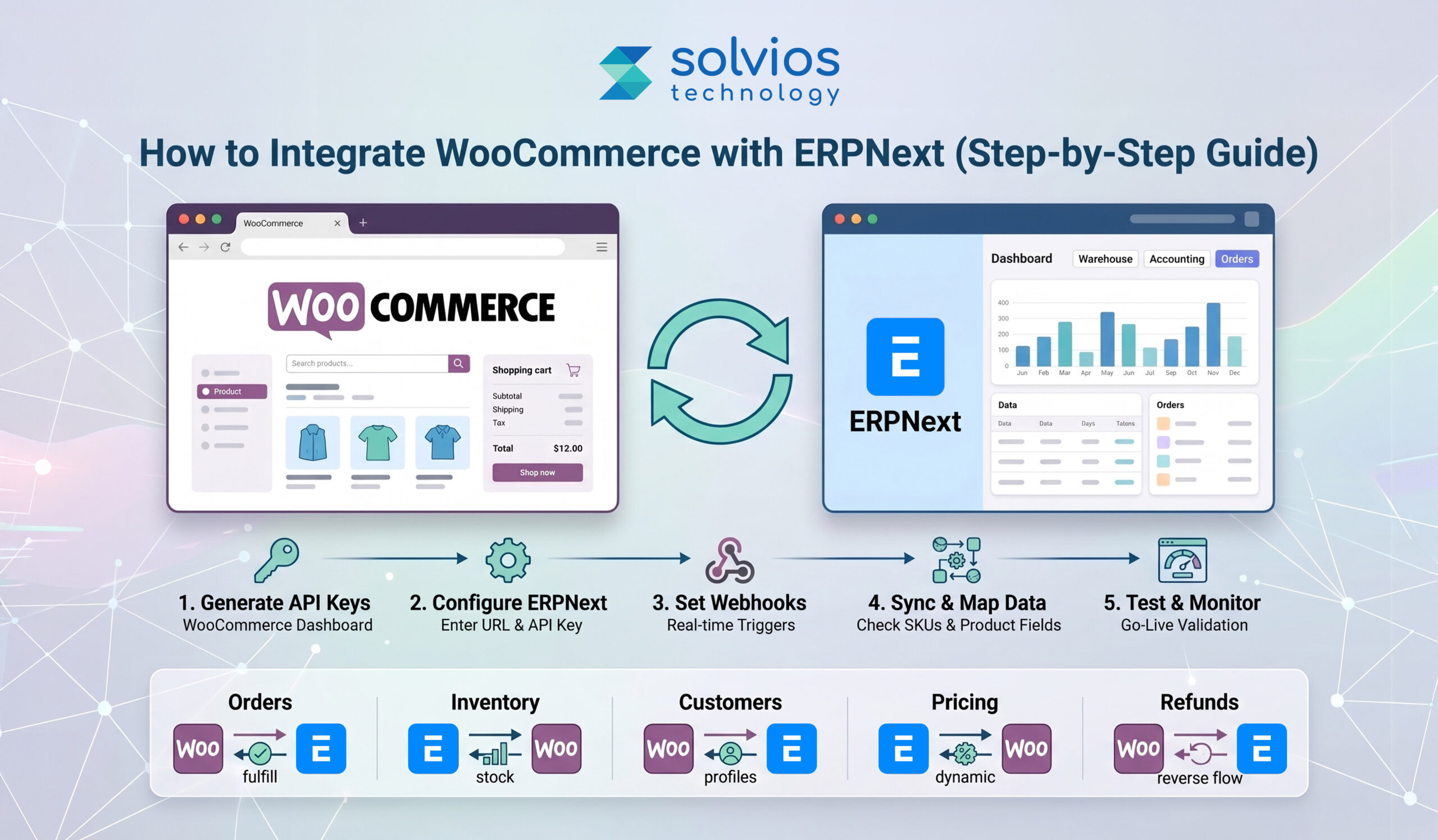
To integrate WooCommerce with ERPNext, follow these steps:
Step 1: Generate WooCommerce API Credentials
Upon entering the WooCommerce dashboard, click on ‘Settings.’ It takes you to the ‘Advanced’ section of the dashboard, from where you need to click on REST API to generate a unique key for your operations. These credentials are important to ensure access to in-store data.
Step 2: Setting Up ERPNext WooCommerce
Once done, click on ERPNext and navigate to ‘WooCommerce settings.’ You’ll find this under the ‘Integration’ option, where you need to input the following:
- Store URL
- API key
This step links both platforms.
Step 3: Configure WooCommerce Webhooks
Getting your WooCommerce webhooks configured at the outset is a real time-saver when things get busy. You can set them up to trigger particular functions within your store.
Step 4: Sync Products & Inventory
Make sure your products and inventory are synced across all your stores. It’s crucial that the SKU numbers are identical to keep everything consistent.
Step 5: Test & Monitor Sync
Don’t jump into go-live once you have configured WooCommerce with ERPNext. Test and monitor the overall data sync to ensure consistent operations from day one.
Want to know the cost of integrating WooCommerce with ERPNext for your business?
Get Pricing DetailsData Types You Can Sync – And Why They Matter
| Data Type | Sync Direction | Why It Matters |
| Orders | Synced from WooCommerce to ERPNext | Automates fulfillment |
| Customers | Synced from WooCommerce to ERPNext | Centralized data |
| Products Inventory | Synced from ERPNext to WooCommerce | Accurate updates prevent stockouts or overselling |
| Pricing | Synced from ERPNext to WooCommerce | Offers centralized control |
Best Practices for WooCommerce ERPNext Integration
Validate API keys and secure endpoints
Validate your API keys and secure endpoints before launch. Minor integration errors at this stage can halt operations.
Use matching SKUs across systems
Use matching Serial Keeping Units (SKUs) across the ecosystem. A change in any of your SKUs can cause irregularities while syncing.
Set up a test store first
Don’t go live directly; test everything over a demo setup first. Remember, it’s safer to run a test store and fix issues than to fix issues later.
Monitor logs regularly
Audit your logs at regular intervals. It enables you to find problems before they break your operations.
Backup before enabling sync
Don’t just add new integrations to your workflow; back up your systems before you synchronize them. It gives you the flexibility to roll back.
Build automation rules in ERPNext
Set pre-defined rules for fulfillment and order handling so your system doesn’t rely on manual steps.
If you’re evaluating the investment side, this ERPNext implementation pricing guide can help you plan better.
Ready to connect WooCommerce with ERPNext and simplify your operations?
Get Expert HelpCommon WooCommerce ERPNext Integration Issues (and Fixes)
1. Orders not syncing
Orders failing to sync? First, examine your webhook configuration. Often, the issue stems from an incorrect endpoint or insufficient permissions.
2. Inventory mismatches
Check SKU consistency to gauge the speed of inventory updates. Order delays or mismatched SKUs are usually the culprits.
3. Custom product attributes are not syncing
Review field mapping; custom fields often require manual configuration in middleware or connectors to facilitate data transfer.
Advanced Integration Scenarios (Enterprise-Focused)
Multi-Store Sync
Organizations running multiple eCommerce stores can integrate their database with a single ERPNext setup. It keeps customers, orders, and product inventory over a single platform, simplifying management operations.
Multi-Warehouse Stock Routing
Ease of inventory tracking simplifies operations across multiple warehouses. Order delivery and tracking can be separated based on availability, location, and delivery.
Custom Pricing Rules
Prices don’t always need to be static. When running promotions and other campaigns, you can leverage dynamic pricing across different systems.
Refunds & Returns Automation
Returns and refunds across WooCommerce can be moved to ERPNext. This aligns your stock update with financial records without any manual intervention.
For a broader perspective, this complete ERPNext guide for businesses explains how ERPNext supports scaling operations.
How Solvios Can Help With WooCommerce + ERPNext Integration
Running your business alone is challenging, let alone managing multiple integrations inside your workflow. Integrating ERPNext with WooCommerce can be a real headache for teams. It doesn’t just slow things down; it also creates unnecessary complications in day-to-day operations.
At Solvios Technology, we bring you the team and experts who help you simplify the entire integration process. We automate the entire integration process so your team can:
- Focus on the quality of sales
- Simplify everyday operations
- Enjoy streamlined management
As a worldwide ERPNext implementation company, Solvios has helped organizations across the USA, Canada, the UK, and beyond make this transition with confidence.
Need expert guidance on WooCommerce + ERPNext integration?
Call with our experts NowFrequently Asked Question
WooCommerce can be integrated with ERPNext using REST APIs, webhooks, or middleware tools to sync orders, inventory, customers, and pricing automatically across both systems in real time.
The best method depends on complexity: APIs for full control, plugins for quick setup, and middleware for enterprise workflows involving multiple systems, automation rules, and scalability requirements.
Basic integrations take 1–2 weeks, while custom or enterprise integrations with multiple workflows, data mapping, and automation can take 4–8 weeks depending on complexity and system dependencies.
You can sync orders, customers, products, inventory, pricing, taxes, and order statuses, ensuring consistent data flow and eliminating manual updates across eCommerce and backend ERP operations.
Common issues include API misconfiguration, SKU mismatches, webhook failures, and data mapping errors, which can disrupt syncing and require proper validation, testing, and monitoring to resolve.
Costs vary from $1,000 to $10,000+ depending on integration method, customization level, number of systems, and automation requirements, with enterprise setups requiring higher investment.
About Author
Like What You See? Share with a Friend
Turn Insights Into Action
Planning something next? Let’s turn ideas into action.
How Much Does Dynamics 365 Implementation Really Cost? (Complete Breakdown)
- 11 Min Reads
-
- By Dhwani Shah
- Summary
- What Is Microsoft Dynamics 365 & Business Central?
- Dynamics 365 Implementation Cost Breakdown: Key Components Explained
- Dynamics 365 Implementation Cost Breakdown (Realistic Pricing by Business Size)
- Dynamics 365 Implementation Cost by Industry: Real-World Business Scenarios
- Key Factors That Affect Dynamics 365 Implementation Cost
- Hidden Dynamics 365 Implementation Costs You Should Know
- Is Dynamics 365 Worth the Implementation Cost? ROI, Benefits & Business Value
- Dynamics 365 Implementation Models and Their Impact on Total Cost
- How to Estimate Dynamics 365 Implementation Cost (Step-by-Step Budget Guide)
- How Solvios Helps With Dynamics 365 Implementation Cost Planning
- Frequently Asked Question
Key Takeaways
- Dynamics 365 implementation costs usually range from $25,000 to over $1 million, depending on business size, required modules, integrations, and custom development.
- The largest cost factors are licensing, implementation services, data migration, third-party integrations, training, and ongoing support.
- Small businesses often spend $25k–$75k, while enterprise organizations with multiple modules and complex workflows can exceed $1M.
- Businesses can reduce implementation costs by defining a clear scope, using phased rollouts, limiting customization, and reusing existing systems where possible.
Summary
The cost of Dynamics 365 implementation is rarely fixed. Most businesses expect a fixed number, but the reality is different.
The Dynamics 365 implementation cost varies significantly depending on modules, integrations, and customization requirements.
Wonder why?
Microsoft Dynamics 365 brings ERP and CRM into a single cloud platform. It connects:
- Finance
- Sales
- Operations
- Customer data
It enables teams to work within a single system rather than multiple disconnected tools. It offers visibility and control, depending on how well the system is implemented.
This is why implementation cost plays a major role. The real investment is not just what you pay, but how the system is planned, built, and scaled.
In this guide, we break down the cost of a Dynamics 365 implementation in detail: what you pay, where the money goes, and why it varies.
What Is Microsoft Dynamics 365 & Business Central?
Microsoft Dynamics 365
Microsoft Dynamics 365 is a set of business tools that runs on the cloud. It brings CRM and ERP functions into one place. Sales, finance, operations, and customer service all work within the same system, so teams don’t have to rely on separate tools for individual operations.
If you want a broader overview of the platform, explore our Microsoft Dynamics 365 guide.
Microsoft Business Central
Business Central is part of the Dynamics 365 platform, a comprehensive cloud-based solution designed for mid-sized companies. It is a practical ERP that manages finance, inventory, and operations without the complexity of large enterprise deployments.
Users can access Business Central under a Microsoft Dynamics 365 subscription. However, most owners confuse licensing with software implementation.
- The license fee is a recurring cost users pay to keep using the platform.
- Implementation is an entire process that involves system configuration, workflow customization, and integration with other tools.
The difference between licensing and implementation usually determines the overall costs of Dynamics 365 implementation.
Dynamics 365 Implementation Cost Breakdown: Key Components Explained
Software Licensing
Licensing is generally the first step in Dynamics 365. It follows a per-user, monthly pricing model, with options such as Business Central and Finance & Operations for businesses that are small, growing, or already operating at scale.
Implementation Services
Implementation is where the budget shifts. It includes project scoping, requirement mapping, system configuration, and any custom development. The more tailored the setup, the higher the cost.
Most businesses rely on professional Dynamics 365 Implementation Services to manage configuration, customization, and integration without increasing long-term project costs.
Integration Costs
Dynamics 365 usually needs to connect with other systems already in use. This could be a CRM, an ecommerce platform, payroll software, or a reporting tool, requiring direct integration or customization. Such add-ons increase the overall costs.
Data Migration
Moving from legacy systems involves more than just a transfer. Data needs cleaning, mapping, and validation. Poor data quality costs the organization more time and investment.
Training & Change Management
A system is only useful if teams adopt it. Admin training, user onboarding, and process alignment all factor in. Skipping this often leads to post-go-live delays.
Support & Maintenance
Costs associated with Dynamics 365 don’t stop once the system is live. The system requires ongoing support, small fixes, and periodic upgrades, which are usually considered as future costs of the platform.
Need Help Estimating Your Dynamics 365 Implementation Cost?
Contact us today for a custom estimateDynamics 365 Implementation Cost Breakdown (Realistic Pricing by Business Size)
How much does Dynamics 365 implementation cost?
There’s no fixed number; it usually depends on how big the setup is and how much needs to be built around it.
The Dynamics 365 implementation cost typically ranges from $25,000 to $1,000,000+, depending on business size, modules, integrations, and customization. Small businesses spend less, while enterprise implementations require higher investment due to complexity.
Still, most projects land somewhere in these ranges:
| Size of Business | Scope of Implementation | Estimated Cost |
| Small or Growing Business | Basic operations with standard configuration | $25k – $75k |
| Mid or Established Business | Custom workflows with more integrations | $75k – $250k |
| Enterprise Business | Has a multi-module setup with complex integrations | $250k – $1M+ |
The ultimate price tag hinges on the extent of the required system modifications. Custom workflows, for instance, demand additional resources. Integrations mean more data moving between systems. Compliance adds its own layer of checks.
Because of this, the ERP implementation cost doesn’t stay the same. More depth usually means more work.
Dynamics 365 Implementation Cost by Industry: Real-World Business Scenarios
Costs start to make more sense when you look at how Dynamics 365 is actually used in different businesses. The system stays the same, but the setup changes.
Scenario A: Retail Chain
A retail setup usually needs sales, POS, and inventory to stay connected. Stock levels, orders, and store activity need to be reflected in real time.
Approx.: $60k – $150k
The cost here is mostly tied to integrations and handling multiple locations.
Scenario B: Manufacturing
Manufacturing setups are heavier. Production planning, inventory movement, and warehouse coordination all come into play.
Approx.: $120k – $400k
Costs increase because workflows are more detailed and interdependent.
Scenario C: Professional Services
Service businesses focus more on project tracking, billing, and time management. The structure is simpler compared to manufacturing.
Approx.: $40k – $120k
Costs stay relatively lower unless reporting or billing logic becomes complex.
Across these business central cost scenarios, the difference usually comes down to how much the system needs to manage at once.
Key Factors That Affect Dynamics 365 Implementation Cost
What drives the cost for Dynamics 365?
In most cases, the overall cost of implementing Dynamics 365 depends on the decisions made before the project begins. However, there are a few cost drivers you can control midday, namely:
Scope clarity
A predefined scope of work reduces rework and delays, saving costs from unexpected changes mid-implementation.
Standard vs custom processes
Standard features are plug-and-play, whereas customization requires manual input, increasing effort and time.
Integration strategy
Limiting the number of integrations in your workflow and planning them well reduces maintenance efforts in the long term.
Modular approach (phased rollout)
Going all-in on the integration can be risky. Rolling out in phases reduces costs and overall risks while keeping implementation simple.
Reuse of existing systems
Developing new systems for your business can be costly. Using existing systems where possible reduces overall project cost.
Template usage
Using a template where possible can significantly reduce implementation time, saving effort and overall costs.
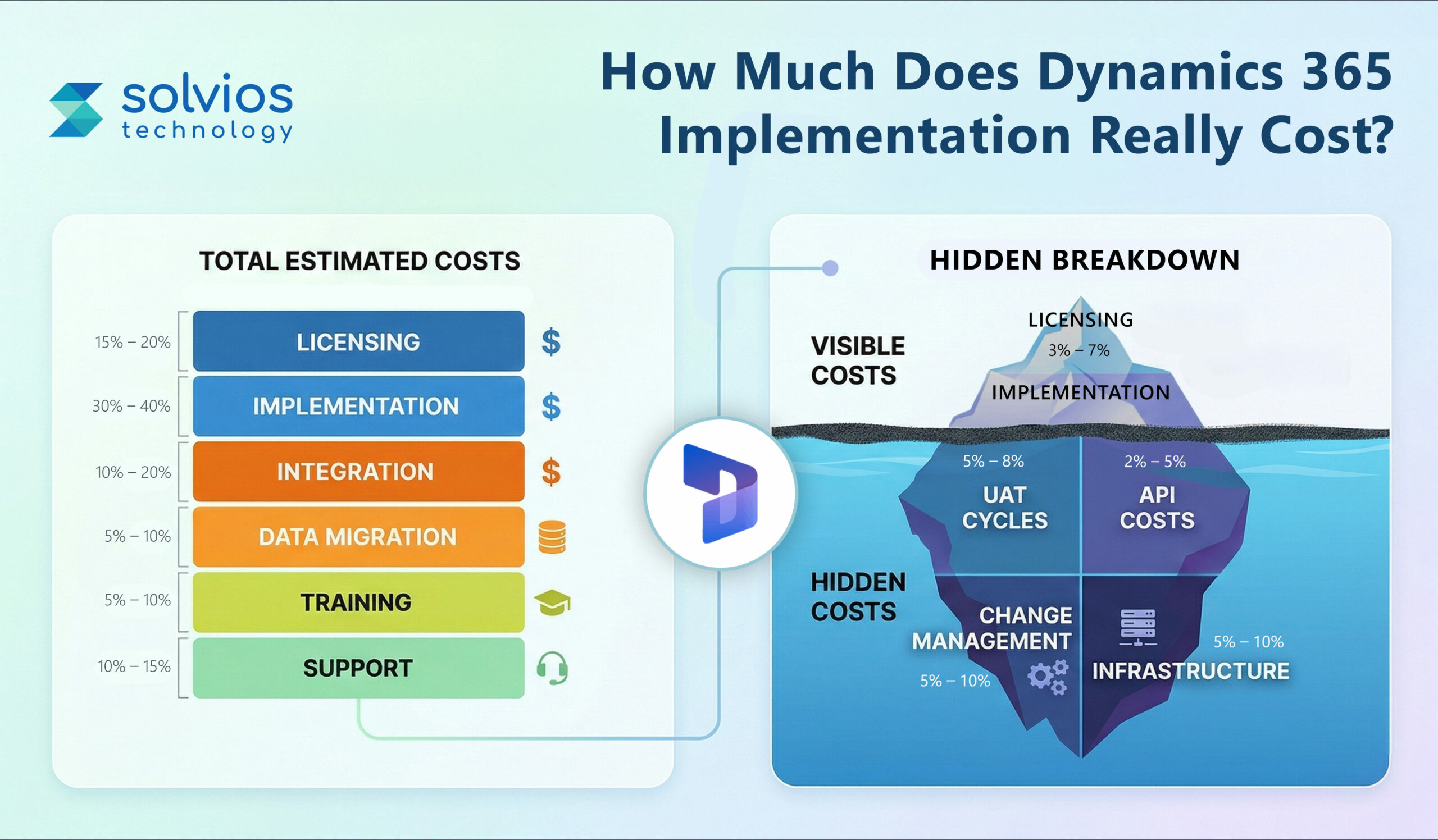
Hidden Dynamics 365 Implementation Costs You Should Know
Most Dynamics 365 implementation costs are listed and visible in your daily operations. However, there are a few hidden costs most businesses overlook, namely:
Organizational change management
People take time to adjust. Training sessions, internal alignment, and day-to-day support slowly add to the cost.
Testing & UAT cycles
Testing doesn’t end with one round; it requires multiple tests. Running multiple testing and UAT cycles extends the timeline and costs.
Regression testing during upgrades
Each update requires users to recheck existing workflows to ensure there are no changes in the system after the upgrade.
API usage charges
Frequent data exchange between systems increases API usage, ultimately adding to charges.
Third-party extensions
Third-party extensions and other tools attract additional licensing fees, which may require you to hire someone for support or maintenance.
Infrastructure costs (Azure/AWS/On-Prem)
Infrastructure costs are often variable for Dynamics 365. Hosting, storage, or computing operations add costs as they scale.
Concerned About Hidden Dynamics 365 Costs?
Get a Cost EstimateIs Dynamics 365 Worth the Implementation Cost? ROI, Benefits & Business Value
Is Business Dynamics 365 worth the cost?
The answer depends on how you use the platform. Most businesses don’t experience immediate ROI, but the shift happens slowly.
Here’s a closer look at business value vs cost:
Efficiency Improvements
Dynamics 365 handles multiple elements of your business. Work that once moved through emails and spreadsheets is handled within the workflow. Many businesses also reduce manual work through Dynamics 365 automation.
Reduced IT Fragmentation
Instead of using multiple tools for their operations, businesses now leverage a single setup. Data sits in one place to avoid confusion between teams.
Better Compliance & Audit Trails
Actions are recorded in real-time throughout your system. It helps you audit the system more effectively and in real time.
Real-time Reporting & Dashboards
Reporting isn’t manual anymore. The real-time updates throughout workflows give transparent insights into operations. Businesses also benefit from understanding AI in Dynamics 365 to improve forecasting, reporting, and decision-making.
Alignment with the Microsoft Ecosystem
Teams used to the Microsoft platform will find the ecosystem familiar. It results in them taking less time to adjust to the new platform.
| Timeline | Investment | Insights |
| Year 1 | High upfront investment | Changes in setup and overall workflow to figure out the system. |
| Year 2 | Stable or fixed investment | Teams use the system for their daily operation. |
| Year 3 Onwards | More stable foundation | You experience ROI with consistent usage. |
The upfront cost might seem on the higher end. However, teams begin to see ROI as they use the system regularly.
Dynamics 365 Implementation Models and Their Impact on Total Cost
The price of a project changes depending on how costs behave later in the project. It’s not just about developing the project but how you approach it:
| Model | When it Works | What Happens to Cost |
| Fixed-price | The project has a clear scope | Development is practical, attracting additional costs for changes |
| Time & Materials | The requirements keep changing | Changes with the project development and time spent. |
| Hybrid | A mix of clarity and changes in the project | Offers some control over costs while also attracting additional fees at certain locations. |
Fixed-Price Engagements
Used when everything is defined early. The number stays stable, but any change later usually adds to it.
Time & Materials
Works when things are still being figured out. Cost depends on how much time and effort go into it.
Hybrid Model
The hybrid model is a mix of both approaches. It offers some control over costs while the scope for development remains unclear.
In the end, your chosen model will determine the flexibility of your project.
How to Estimate Dynamics 365 Implementation Cost (Step-by-Step Budget Guide)
How do you plan a Dynamics 365 budget? Start with clarity, not assumptions. Break it down step by step.
1. Assess business processes
Examine your workflow to identify where it falls short and how Dynamics 365 can streamline it to improve performance.
Before starting implementation, many companies first evaluate whether their current systems are limiting growth. These are often the early signs of when to migrate to Dynamics 365.
2. Define minimum viable scope
Don’t start with a complete overhaul; move with a structured integration plan during the early stages.
3. Prioritize modules
Choose the modules that impact your business. Don’t rush to deploy the entire suite at once.
4. Identify third-party systems
Create a list of existing tools, such as eCommerce, CRM, and payroll systems, that need to be integrated with Dynamics 365.
5. Prepare the integration landscape
Create a workflow for how data is exchanged, the update frequency, and dependencies across different platforms.
6. Plan for contingency buffer (10–20%)
Keep a buffer for unexpected changes, delays, or additional requirements that surface during implementation.
7. Include a budget template or checklist
Use a simple checklist or template to clearly track costs, scope, integrations, and ongoing expenses.
How Solvios Helps With Dynamics 365 Implementation Cost Planning
Planning the implementation cost for Dynamics 365 can be challenging, especially if you make midcourse modifications. Team Solvios works with decision makers early, before anything is built.
We keep the scope clear and realistic, and maintain simple workflows that give you detailed insights into cost breakdowns and staged rollouts.
As your team, we don’t stop at go-live; we stay as your partners post that to support, fix issues, and improve the system as needs change.
Need Help Planning Your Dynamics 365 Budget?
Get Your Personalized Cost Estimate Today!
Frequently Asked Question
Dynamics 365 implementation typically takes 2–12 months depending on business size, modules, integrations, and customization complexity. Phased rollouts can reduce risk and accelerate time-to-value.
Key cost drivers include customization, number of modules, integrations, data migration complexity, and user training. Poor planning or scope changes can significantly increase overall implementation costs.
Dynamics 365 can be more cost-efficient than traditional ERP systems due to cloud deployment, flexible licensing, and scalability, but implementation costs vary based on customization and integration requirements.
Licensing is a recurring subscription fee, while implementation cost is a one-time investment covering setup, customization, integrations, and deployment of the Dynamics 365 system.
Yes, costs can be reduced by defining clear scope, limiting customization, using standard modules, adopting phased implementation, and reusing existing systems wherever possible.
ROI from Dynamics 365 comes through improved efficiency, reduced operational costs, better data visibility, and streamlined workflows, typically realized within 1–3 years after implementation
About Author
Like What You See? Share with a Friend
Turn Insights Into Action
Planning something next? Let’s turn ideas into action.